
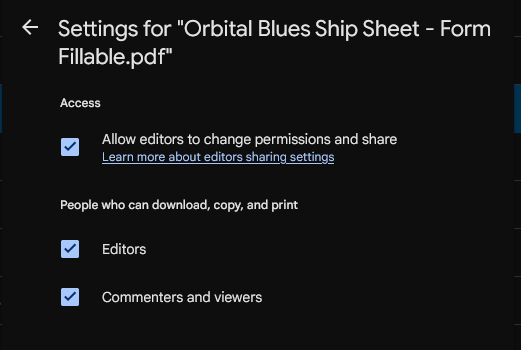
I use Google Drive for a lot of my personal storage, and I depend on it for keeping my collection of PDFs for various TTRPGs and board game rules.
Drive makes it simple to share your PDFs with the people you’re playing with. Mike Shea at Sly Flourish describes his approach to allow for sharing but protecting files from being downloaded (for copyright issues), and it’s what I (try to) use.
It’s a nice solution to a difficult problem, but it gets hard to manage. I know I’ve shared folders in haste without blocking downloads before, and it’s a little fiddly (it requires a couple of extra clicks in web, you can’t set it on an entire folder, and last time I tried it on mobile I couldn’t find it).
There’s got to be a better way, and (for me) that better way is Google Apps Script. This is a web-based coding environment using JavaScript that lets you skip managing app keys and handles permissions for you. I’m not sure if I’d use this method for production code, but for a personal script it’s just fine.
This blog post will walk you through how I set up that script, which uses this logic:
- Get all PDF files from your Google Drive
- Filter out any files that aren’t:
- Shared with a link
- Under a specified top-level folder
- For any other files:
- If it’s a file we want to leave downloadable (quick references, character sheets, etc.), ensure we aren’t blocking the option to download the file.
- If it’s a file we want to block downloads, ensure that option is set for Viewers.
Sounds simple, right? It is, but knowing where to find and update those settings is tricky.
Getting started with Google App Script + Drive API
To begin: you should be careful about using this because you’re going to be running code against your Google Drive as soon as you log in. This is usually pretty straightforward–don’t execute any functions with names like set, remove, or update and you should be fine. Make sure you check over any code you paste in–even the code I provide here–before you click Run.
Here’s what you need to do to get started:
- Log in to https://script.google.com and do any necessary setup
- Click “New Project” to create a new script. This will create a file with an empty “myFunction”, which will be called when you click Run.
- Click the + icon by Services in the left sidebar, and select Drive API.
- When prompted for permissions, click Allow (you might have to expand advanced options in some windows).
At this point, you can use the Drive and DriveApp objects to start querying files in your Google Drive. Note that Drive doesn’t exactly work like your local file system–you can pull a list of all files across your entire drive by type, and you’ll sometimes get files that were shared with you that you won’t have full access to.
Running the script
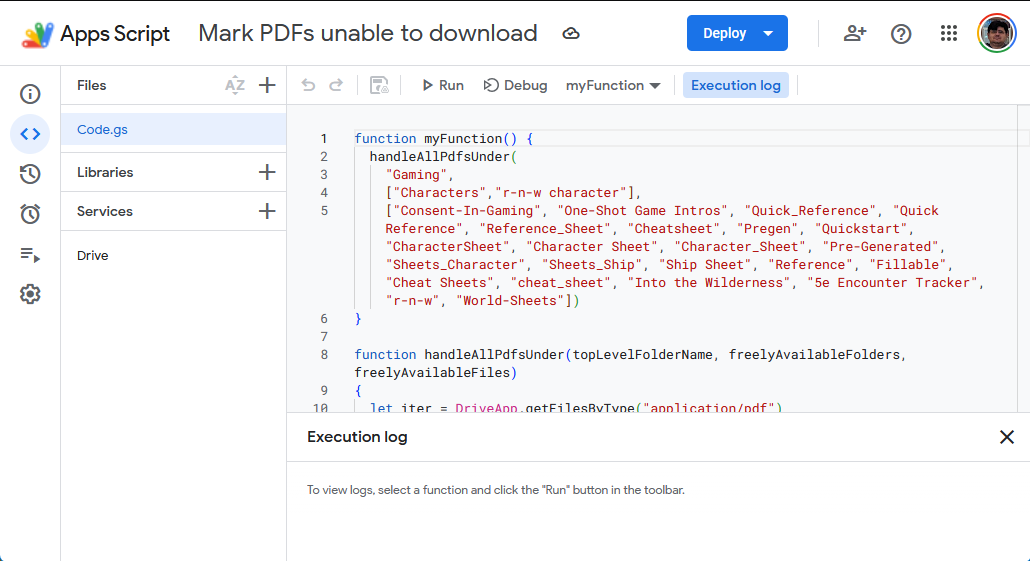
Here’s the script I use as a github gist. You’ll want to change the parameters to the handleAllPdfsUnder function, which specifies:
- the name of the top-level folder to update
- text that, if it appears in a parent folder, indicates downloads should be allowed
- text that, if it appears in a filename, indicates downloads should be allowed
If you want to play around with the script logic and see results, comment out the call to Drive.Files.update call in updateDownloadable. That’s the only code that should update files.
Note that Google Apps Script has a limited execution time, so you may get timeouts if you have a particularly large Google Drive. I usually solve this problem by testing before I make an update (to avoid making expensive calls that aren’t necessary) and then re-running the script until it finishes successfully.