Knoxville, TN

Backing up Google Docs with help from Google Apps Script

April 12, 2026

I’ve started doing physical backups of my network and cloud storage. That’s potentially a whole other topic, but here’s an overview:

I have a Sabrent USB SATA dock and two 10tb hard drives. Every month-ish, I use rclone (similar to rsync on Linux) to sync over only the files that changed. This ensures that if anything happens to anything, I have a backup copy.

For Google Drive, I use the Windows app, which mounts my Google Drive account as a G: drive. (This is helpful for everyday use, not just backups. For example, I sync my Obsidian vaults with Google Drive as well.) There’s just one problem: you can’t copy Google documents, sheets, slides, maps, etc. to your local hard drive.

Continue reading

Managing Google Drive share permissions with Apps Script

March 22, 2026
Options for blocking downloads in Google Drive

I use Google Drive for a lot of my personal storage, and I depend on it for keeping my collection of PDFs for various TTRPGs and board game rules.

Drive makes it simple to share your PDFs with the people you’re playing with. Mike Shea at Sly Flourish describes his approach to allow for sharing but protecting files from being downloaded (for copyright issues), and it’s what I (try to) use.

It’s a nice solution to a difficult problem, but it gets hard to manage. I know I’ve shared folders in haste without blocking downloads before, and it’s a little fiddly (it requires a couple of extra clicks in web, you can’t set it on an entire folder, and last time I tried it on mobile I couldn’t find it).

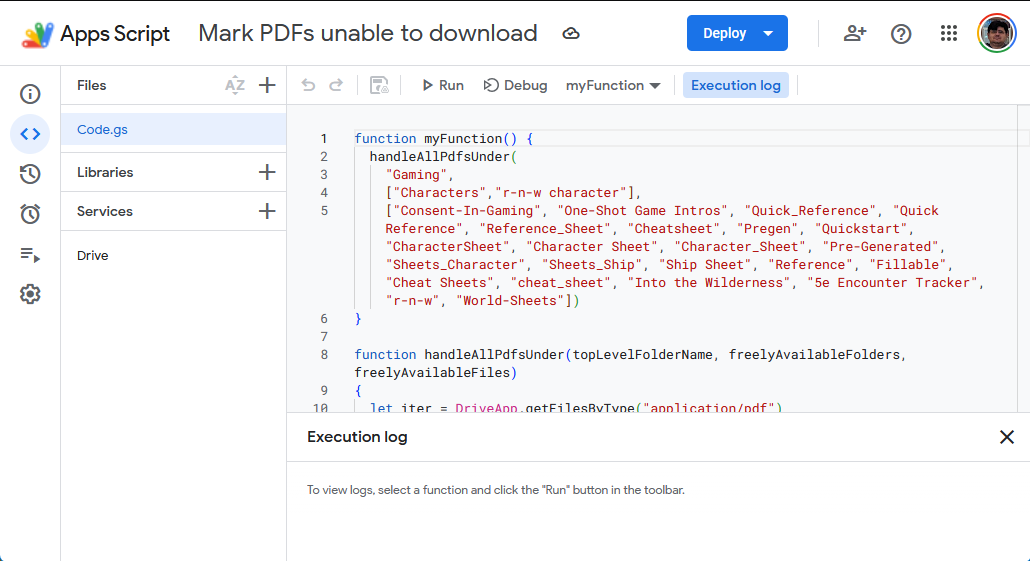
There’s got to be a better way, and (for me) that better way is Google Apps Script. This is a web-based coding environment using JavaScript that lets you skip managing app keys and handles permissions for you. I’m not sure if I’d use this method for production code, but for a personal script it’s just fine.

This blog post will walk you through how I set up that script, which uses this logic:

  • Get all PDF files from your Google Drive
  • Filter out any files that aren’t:
    • Shared with a link
    • Under a specified top-level folder
  • For any other files:
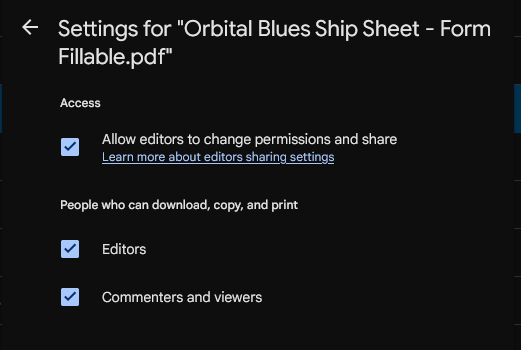
    • If it’s a file we want to leave downloadable (quick references, character sheets, etc.), ensure we aren’t blocking the option to download the file.
    • If it’s a file we want to block downloads, ensure that option is set for Viewers.

Sounds simple, right? It is, but knowing where to find and update those settings is tricky.

Getting started with Google App Script + Drive API

To begin: you should be careful about using this because you’re going to be running code against your Google Drive as soon as you log in. This is usually pretty straightforward–don’t execute any functions with names like set, remove, or update and you should be fine. Make sure you check over any code you paste in–even the code I provide here–before you click Run.

Here’s what you need to do to get started:

  • Log in to https://script.google.com and do any necessary setup
  • Click “New Project” to create a new script. This will create a file with an empty “myFunction”, which will be called when you click Run.
  • Click the + icon by Services in the left sidebar, and select Drive API.
  • When prompted for permissions, click Allow (you might have to expand advanced options in some windows).

At this point, you can use the Drive and DriveApp objects to start querying files in your Google Drive. Note that Drive doesn’t exactly work like your local file system–you can pull a list of all files across your entire drive by type, and you’ll sometimes get files that were shared with you that you won’t have full access to.

Running the script

Here’s the script I use as a github gist. You’ll want to change the parameters to the handleAllPdfsUnder function, which specifies:

  • the name of the top-level folder to update
  • text that, if it appears in a parent folder, indicates downloads should be allowed
  • text that, if it appears in a filename, indicates downloads should be allowed

If you want to play around with the script logic and see results, comment out the call to Drive.Files.update call in updateDownloadable. That’s the only code that should update files.

Note that Google Apps Script has a limited execution time, so you may get timeouts if you have a particularly large Google Drive. I usually solve this problem by testing before I make an update (to avoid making expensive calls that aren’t necessary) and then re-running the script until it finishes successfully.

Adding bookmarks to PDFs with .NET

September 12, 2024

Over the last year or so, I’ve been working up some of my TTRPG adventure notes into PDFs that I’ve released on DMs Guild, DriveThruRPG, and itch.io.

Homebrewery is a pretty nice entry-level approach to this (as I wrote in my previous post), but you’re at the mercy of your browser and your print-to-PDF driver. There are some obvious but hard-to-fix issues like file size (my best shot at this was reducing the size of images and running the result through FoxIt’s free PDF compressor), but what’s less obvious is a lot of features you just don’t get without going through professional PDF authoring software.

One of those features that you just can’t get from print-to-PDF is bookmarks. If you’ve ever used a PDF version of a book as a reference, you know you’re flipping around a lot, and Ctrl-F or guessing page numbers or mindlessly scrolling is annoying. The longer the document, the more you need that handy menu on the sidebar.

Turns out, it’s pretty easy to create a LINQpad script using the free .NET library PDFSharp. (LINQPad is extremely handy for writing up little .NET scripts like you’d do in scripting languages or languages with interactive shells, plus it lets you visualize complex objects pretty easily when you’re prototyping.)

I just create a script that I run every time I create a new version, hard-coding a table of contents that I apply using PDFSharp’s Outlines collection. I also clean up the title, which is generated automatically from the page that gets printed.

void Main()
{
	var FILENAME = Path.Combine(Path.GetDirectoryName(Util.CurrentQueryPath), "Ryuutama - A Mysterious Tune.pdf");

	var BOOKMARKS = new TOCEntry[] {
		new TOCEntry() { Name = "Plot", Page = 1 },
		new TOCEntry() { Name = "GM Overview", Page = 1, Children = new TOCEntry[] {
			new TOCEntry() { Name = "Setting", Page = 1 },
			new TOCEntry() { Name = "Characters", Page = 1 },
			new TOCEntry() { Name = "Monsters", Page = 1 },
			new TOCEntry() { Name = "Plot Resolution", Page = 1 }
		}},
		new TOCEntry() { Name = "Scenes", Page = 2, Children = new TOCEntry[] {
			new TOCEntry() { Name = "Entering The Haile", Page = 2 },
			new TOCEntry() { Name = "Taking the job", Page = 2 },
			new TOCEntry() { Name = "Setting out on the trail", Page = 3 },
			new TOCEntry() { Name = "Trail to the Keyhole", Page = 3 },
			new TOCEntry() { Name = "Camp on the ridge", Page = 4 },
			new TOCEntry() { Name = "The valley", Page = 4 },
			new TOCEntry() { Name = "The Greenhouse", Page = 5, Children = new TOCEntry[] {
				new TOCEntry() { Name = "Exterior", Page = 5 },
				new TOCEntry() { Name = "Top Floor", Page = 5 },
				new TOCEntry() { Name = "Basement", Page = 6 },
				new TOCEntry() { Name = "Cave", Page = 6 }
			}}
		}},
		new TOCEntry() { Name = "Credits", Page = 8 }
	};
	
	using (var pdf = PdfReader.Open(FILENAME))
	{
		pdf.Info.Title = "A Mysterious Tune - Ryuutama Adventure";
		pdf.Outlines.Clear();
		BuildTocs(BOOKMARKS, pdf);
		pdf.Save(FILENAME);
	}
}

void BuildTocs(TOCEntry[] tocs, PdfDocument pdf, PdfOutline parent = null)
{
	foreach (var toc in tocs) BuildToc(toc, pdf, parent);
}

void BuildToc(TOCEntry toc, PdfDocument pdf, PdfOutline parent = null)
{
	var bookmark = (parent != null ? parent.Outlines : pdf.Outlines).Add(toc.Name, pdf.Pages[toc.Page], true);
	if (toc.Children != null) BuildTocs(toc.Children, pdf, bookmark);
}

class TOCEntry
{
	public string Name;
	public int Page;
	public TOCEntry[] Children;
}

Ludum Dare 46: Procedurally generating potted plants in Unity

May 11, 2020

For Ludum Dare 46, I created a very simple tamagotchi game called “Potted Plant Simulator” in Unity (you can find the code here). We kicked around this idea for “Keep it Alive” at the Knox Game Design online meetup, but it was more or less a joke.

However, brainstorming brought me back to the idea because I started wondering about how to procedurally generate a plant in Unity. I speculated that Unity’s hierarchy system (which localizes position, scale, and rotation to the parent node) would let you chain together branches, and I had to test that hypothesis. (Spoiler: hierarchy does not seem to be the best way to handle this.)

Continue reading

Stupid Unity UI Navigation Tricks

November 24, 2018

A few months back, I played around with (yet again) rebuilding a half-finished Metroidvania-style game I’ve played around with off and on over the years.

One of my goals in this experiment was to use base Unity functionality as much as possible, replacing 2D Toolkit and custom systems as much as possible. One of the prime candidates for such a rewrite was the menu system:

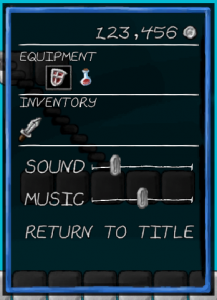
If it’s not immediately obvious, that’s essentially a vertical menu with items that have horizontal behaviors. When “Equipment” is selected, you can choose an item to use or equip on the horizontal axis. When a volume slider is selected, you can adjust the value with the horizontal axis.

Importantly, the game’s intended to be played with a gamepad, so I didn’t want the presence or absence of mouse or touch input to affect this behavior.

Unity UI navigation is pretty smart, and got me most of the way there. If you’ve focused on mouse/touch interface when building your UI, good news: if it’s a grid-ish format, it probably works the way you’d expect. That’s thanks to…

Continue reading

Using a Kindle Fire as a demo device for gamedevs

August 22, 2018

I’ve been readying my demos for the Knox Game Design booth at the Knoxville Gaming Convention, which includes setting up some new demo tablets. Having used a Kindle Fire for demos a before, I feel like it’s a fairly reliable setup for anyone who develops Android games, so I thought I’d share it.

First, why?

The goal here is to have a device specifically for demos. I’d rather not put my personal tablet or phone, which is linked to my Google Play or Amazon Appstore accounts, up for public access.

I have an Intel Compute Stick (which runs $100-$200) that I can use to run full-fledged PC demos. It’s nice and flexible, but it means I have to carry around a TV for each demo station I want to run.

I like Kindle Fires as demo devices for a few reasons:

  • They’re cheap if you’re patient. If you watch Amazon.com deals and Woot.com (under Computers > Tablets), you can occasionally find good deals on older 6″ or 7″ Kindle models. For your average hobbyist developer, you don’t need anything fancier than that. I’ve bought a couple for $20-$30.
  • They’re fairly reliable. Given how fragmented Android is, I’m not inclined to trust the performance of off-brand tablets for games, so getting a name-brand tablet (especially a name brand that’s essentially building its own platform) seems like a safe bet to me.
  • Most models have a physical HDMI out. This was the real selling point for me. Sure, you don’t need it all the time, but it’s nice to be able to mirror something on a larger screen. (For a booth, it’s definitely more attention-grabbing than a row of tablets.)

Pay attention to the Android version

Remember that recent versions of Unity (e.g., within the last year or so) will not build to versions of Android before 4.1. If you’re buying a demo device that runs Android, make sure it can be officially upgraded to 4.1 or later, or you’ll need to rebuild your game in Unity 5. (Yes, there may be homebrew ROM upgrades available, but it may take some trial and error.)

For Kindle Fire, this means anything 2013 or later. If you want to be sure, there’s a list of versions and their corresponding devices on the Wikipedia page for Fire OS.

Setting up your Kindle Fire

If you’ve bought a tablet, you know how this goes. Your first startup is a tour of all the basic questions like language and wifi access, usually culminating in the option to login.

The key point here is to skip registering an account. You should have the option to do this during the process (for some models, you may have to go back to the previous step to do so), and the tablet should still work if you do.

If you bought a Kindle off of Amazon, the device may come pre-registered. You should find an option in Settings > Account to de-register the device.

Side-Loading your App

You don’t have to put your game on the Amazon Appstore to install it on your device; you can copy over the APK and install it from a file manager.

  1. Connect the tablet to your PC with a USB cable, and copy over the *.apk file to the file system.
  2. Go to Settings > Device and set “Allow installation of apps from unknown sources” to “Yes.”
  3. Open either Docs (newer) or OfficeSuite (older). (If you open OfficeSuite, you may have to open Filter and select “Show all files.”)
  4. Open the APK and choose to install the application.

If you get a “parse error” when you open the APK, go back and compare the tablet’s Android version to the minimum Android API level you selected in Unity.

Once installed your icon will show up on the complete list of apps. (It won’t necessarily show up on Games or certain other sections, simply because those aren’t available unless you register your Amazon account.)

Connecting to a TV

Physically mirroring your tablet to a TV is easy, but it requires some extra equipment you probably don’t have laying around.

The Kindle Fires I have use either SlimPort enabled USB (newer?) or micro-HDMI (older).

In the case of the USB, you can buy an adapter that will allow you to connect to both a HDMI cable (for mirroring) and a USB-B cable (for charging). This is the model I bought.

In the case of micro-HDMI, you’ll have a micro-HDMI port alongside your USB. (The HDMI port will be the wider of the two.) In this case, all you need is a micro-HDMI to HDMI cable.


Four ways to handle UI text in Unity

May 4, 2018

While converting some old 2D Toolkit-based Unity code to plain vanilla Unity recently, I ran into a conundrum: Unity’s got great support for standard font formats, but still isn’t quite up to par with tk2d’s support for building fonts from spritesheets.

An example of a sprite font

An example of a sprite font

It’s a minor issue–after all, it’s easier and more legible to drop in an existing font–but I wanted to keep the hand-drawn look.

So, I fell down the rabbit hole of cataloging the different options Unity provides for UI text (including TextMesh Pro, recently acquired by Unity and built in to 2018.1). While my knowledge of typography is pretty shallow (and it seems to be a rather complex topic), this should give you an idea of what’s out there and why you might want to use it.

Continue reading

“LINQPad Cookbook” slides and samples from CodeStock 2018

April 22, 2018

Here are the slides and sample code from my presentation “LINQPad Cookbook” at CodeStock 2018. (Sample code should contain test data and all necessary DLLs.)

RPG Maker MV Scripting First Impressions

September 16, 2017

I started looking into RPG Maker MV to update some of my VX Ace scripting panels and posts, and… it’s different. If you’ve read some of those posts, here’s a few things that might help with the transition.

Continue reading

Using Source Control with RPG Maker VX Ace

May 13, 2017

I mentioned in my intro to RPG Maker scripting post (and in the panel that’s based on it) that you can use source control systems like Mercurial or Git with RPG Maker VX Ace, allowing you to take periodic snapshots of your work.

(First, you’ll want to read a tutorial about how your chosen source control system works, such as hginit.com for Mercurial. This post will make a lot more sense once you do.)

What I neglected to mention is there’s two big, easy-to-forget gotchas with this setup.

Continue reading

×